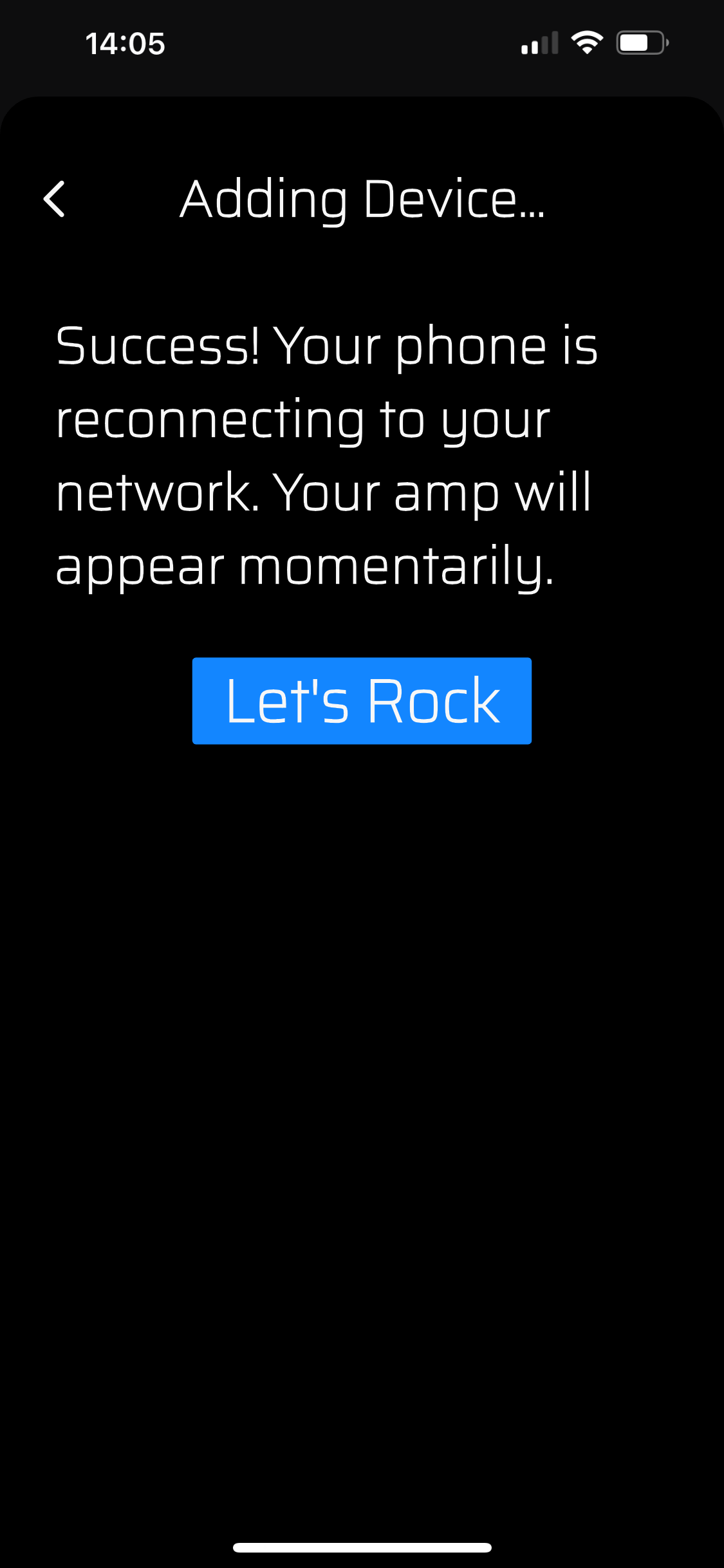
Today I finally unpacked and installed my AC650 following the instructions. All went well up to the point, when App confirms success, see attached. Unfortunately then App starts to scan for devices without finding the unit.
Then I did the same on iPad and it works perfectly fine. The device is quickly located and App works the way it should.
Any idea what would be the issue with iPhone. It run latest IOS, has been restarted several times and of course it is connected to the same WiFi
Looks like the amp is provisioned correctly and is on WiFi network.
Let’s troubleshoot the iPhone
Please double check your on the same WiFi network. I know this is trivial but just in case make sure you’re on the same WiFi on your iPhone as you with the amp.
After making sure it’s on the same network just leave the app open on devices for a little while and see if it comes up. The first time it could be a bit longer to cache and propagate for the iPhone.
If you can log in into your router and make sure you have the latest firmware updated. Also see if there are any firewalls up in the router.
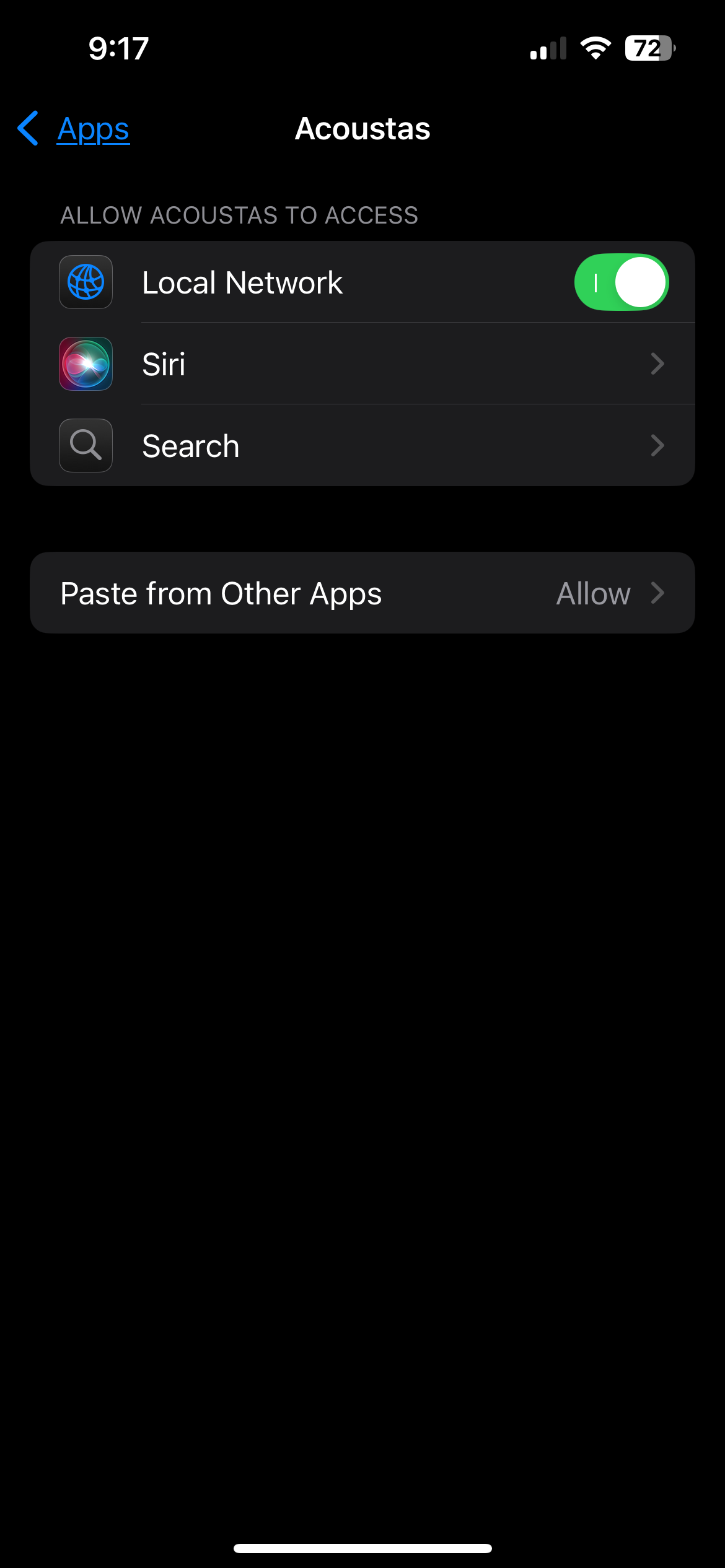
on the iPhone in the settings go to th Acoustas app any make sure the WiFi networking is on.
I followed the suggested steps but it didn’t help.
So I tried to test on other iPhone, but the problem remains the same. The device is not discovered despite it seems connected.
Then I installed the App on my MacBook Air
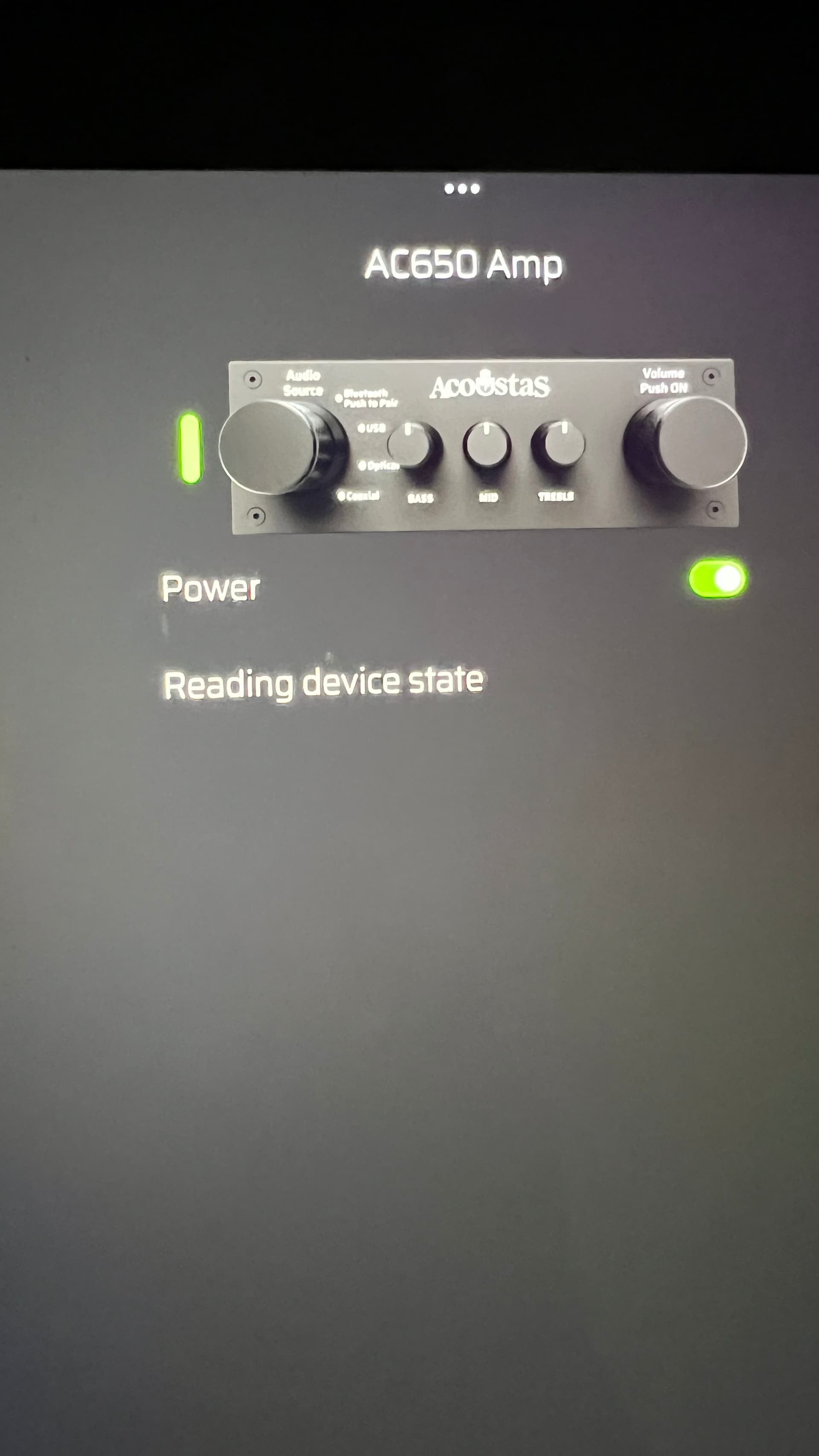
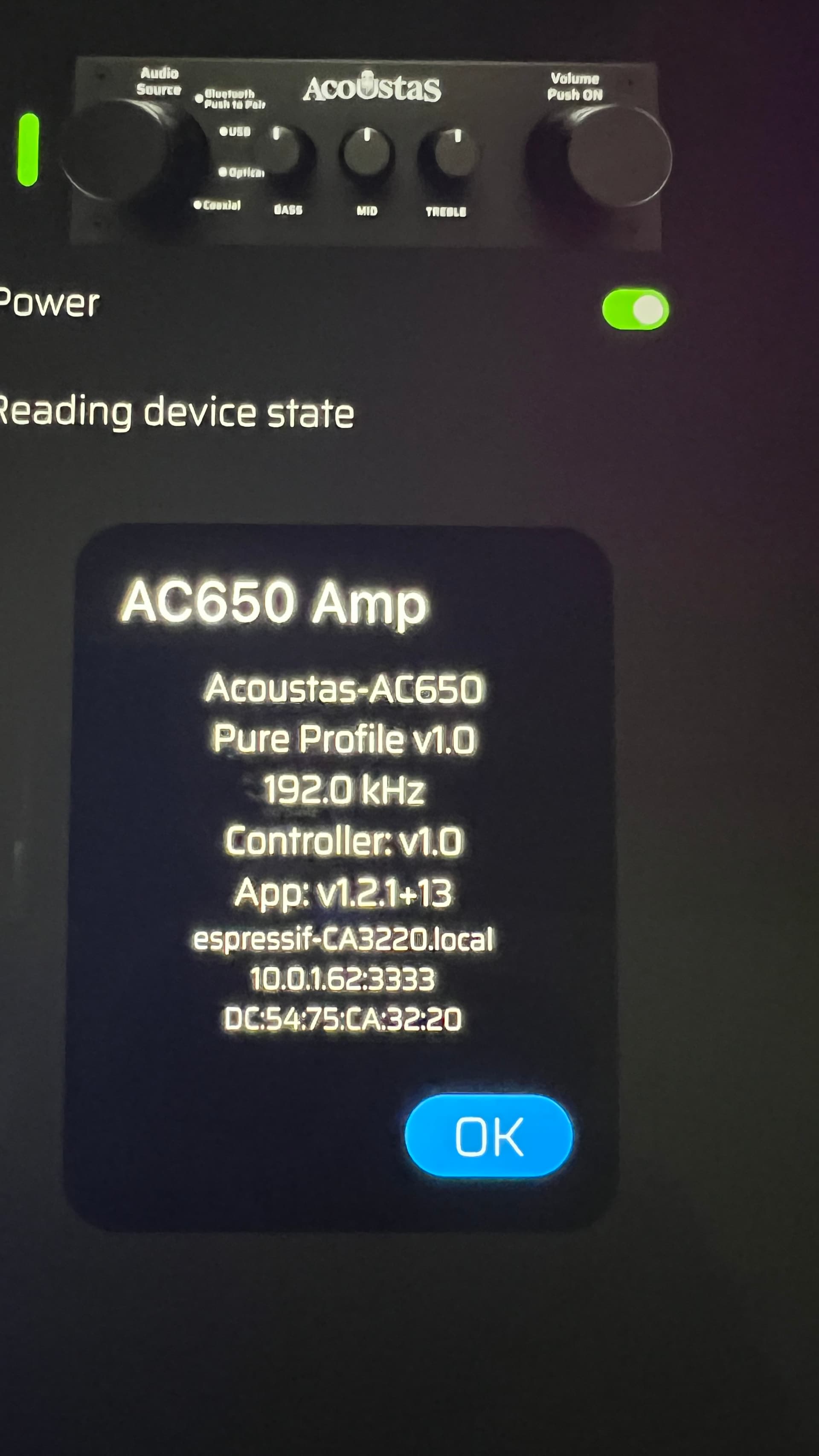
. It works partially. AC650 is connected and appears in the App, switches to the control tab and the failing to read device state. The screen refreshes every 20 seconds or so. See screenshot attached.
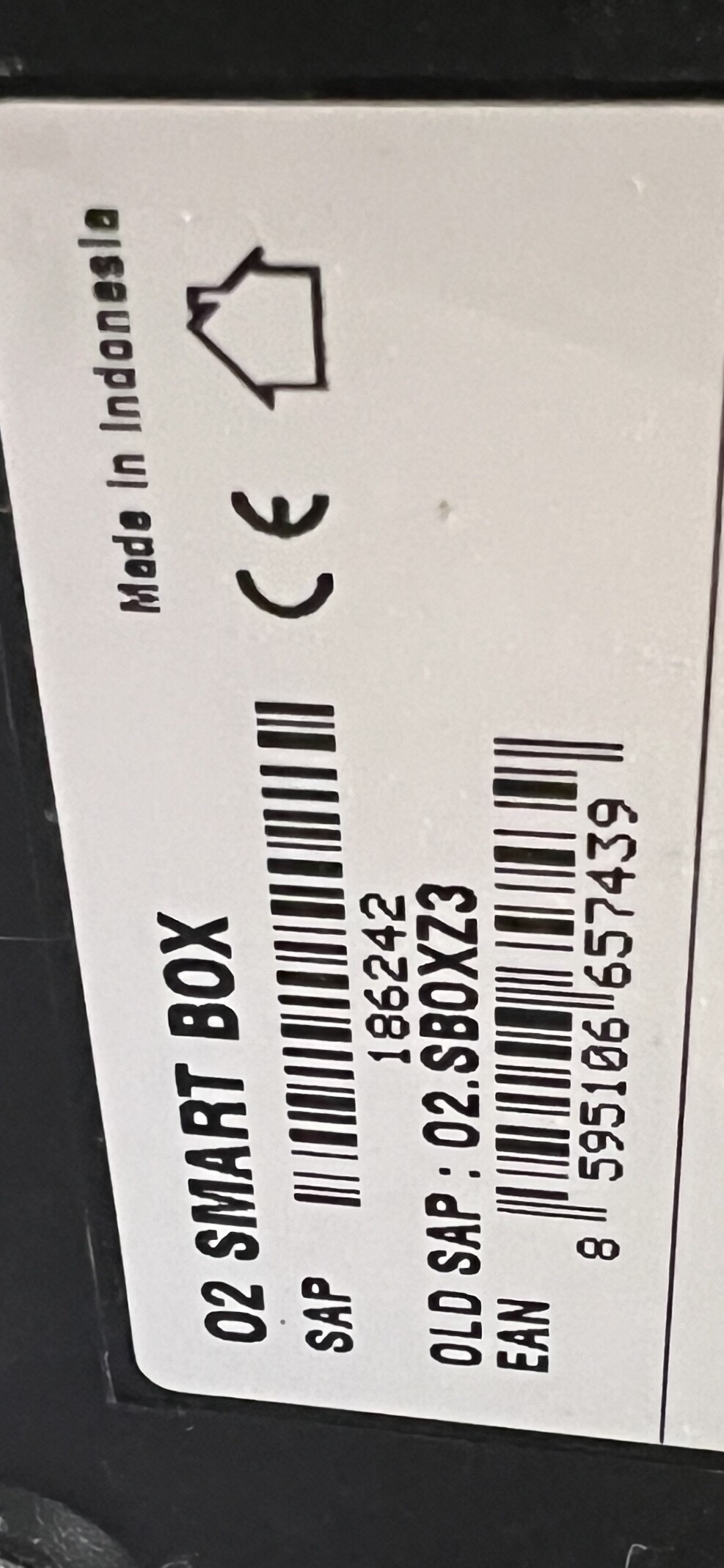
I have O2 Smart Box modem, details attached. It seems working well for all other Apps and devices like WiiM streamers, Bluesound Node 2 or Raspberry Pí Volumio streamers. No issue at all with discovering those devices and controlling them.
I looked into the modem settings, but there is no parameter like mDNS.
If your iPhone or iPad is not discovering the AC650 in the app, the most common cause is how your Wi-Fi router handles mDNS (Bonjour) traffic. The AC650 uses mDNS to announce itself on the network, and some routers (including the O2 Smart Box) block or filter this traffic by default.
Here are the steps to fix it:
On Your Router
Enable Multicast / IGMP
In the router settings, look for options like Multicast Filtering, IGMP Proxy, or IGMP Snooping and make sure they are enabled/allowed.
Disable AP Isolation / Privacy Mode
Turn off any setting called Wireless Isolation, Client Isolation, or Wi-Fi Privacy. These block devices from seeing each other on your network.
Use the Same Wi-Fi Band
Make sure both your iPhone and the AC650 are connected to the 2.4 GHz network (recommended for discovery). If the router separates 2.4 and 5 GHz, put both devices on the same band.
Avoid Guest Networks
Do not connect the AC650 or your phone to a “Guest Wi-Fi” network. Guest networks usually block local device discovery.
On Your iPhone / iPad
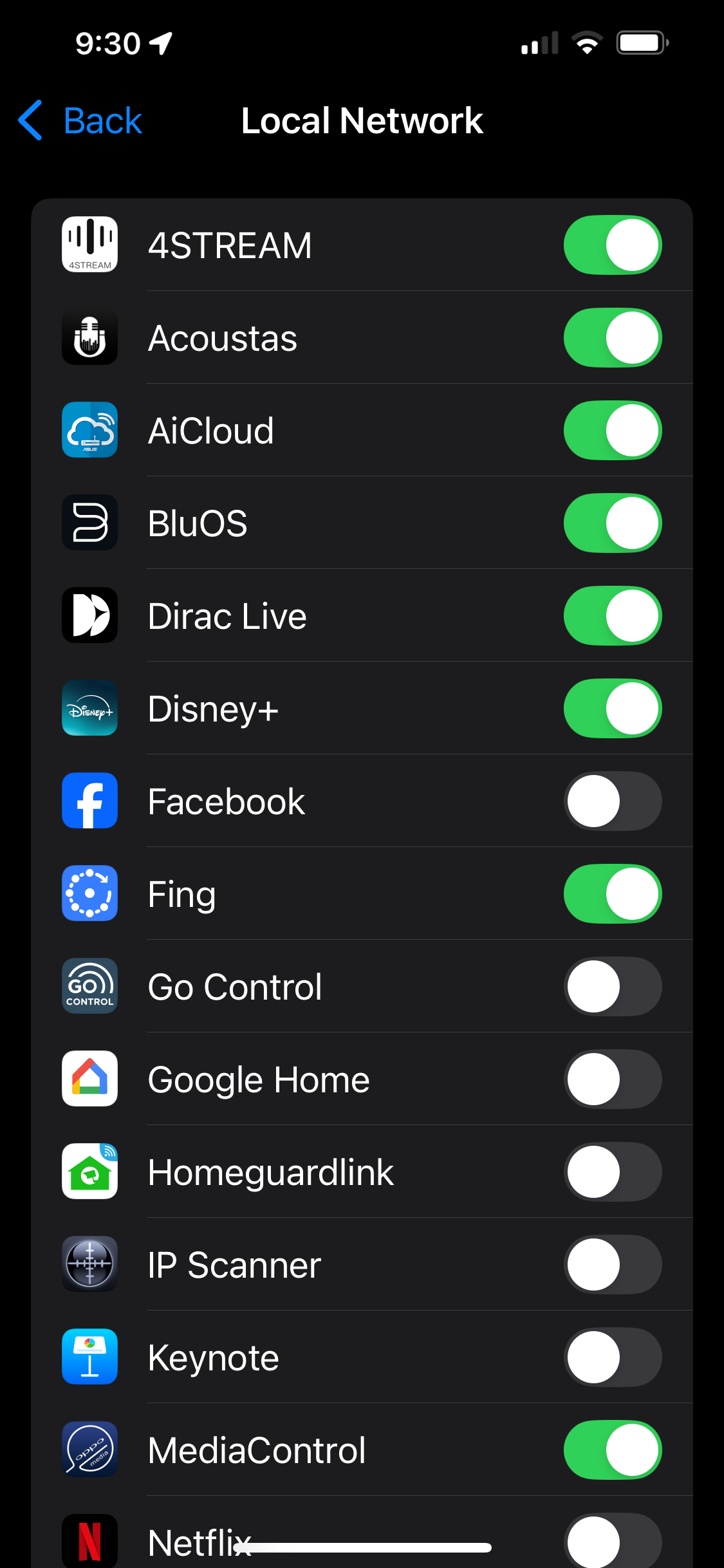
Go to Settings → Privacy & Security → Local Network and make sure the AC650 app has permission.
In Wi-Fi Settings → (your network):
Turn off Private Wi-Fi Address (helps the amp be consistently recognized).
Optionally turn off Limit IP Address Tracking.
Additional Notes
The AC650 always advertises itself via mDNS (Bonjour) on your local network.
If you still cannot see it, try toggling Airplane Mode on and off or restarting your router to refresh the connection.
As a fallback, future app updates will include direct IP scanning in case Bonjour is blocked by certain ISP routers.
Most discovery issues are resolved by enabling multicast on the router and making sure both devices are on the same 2.4 GHz Wi-Fi network.
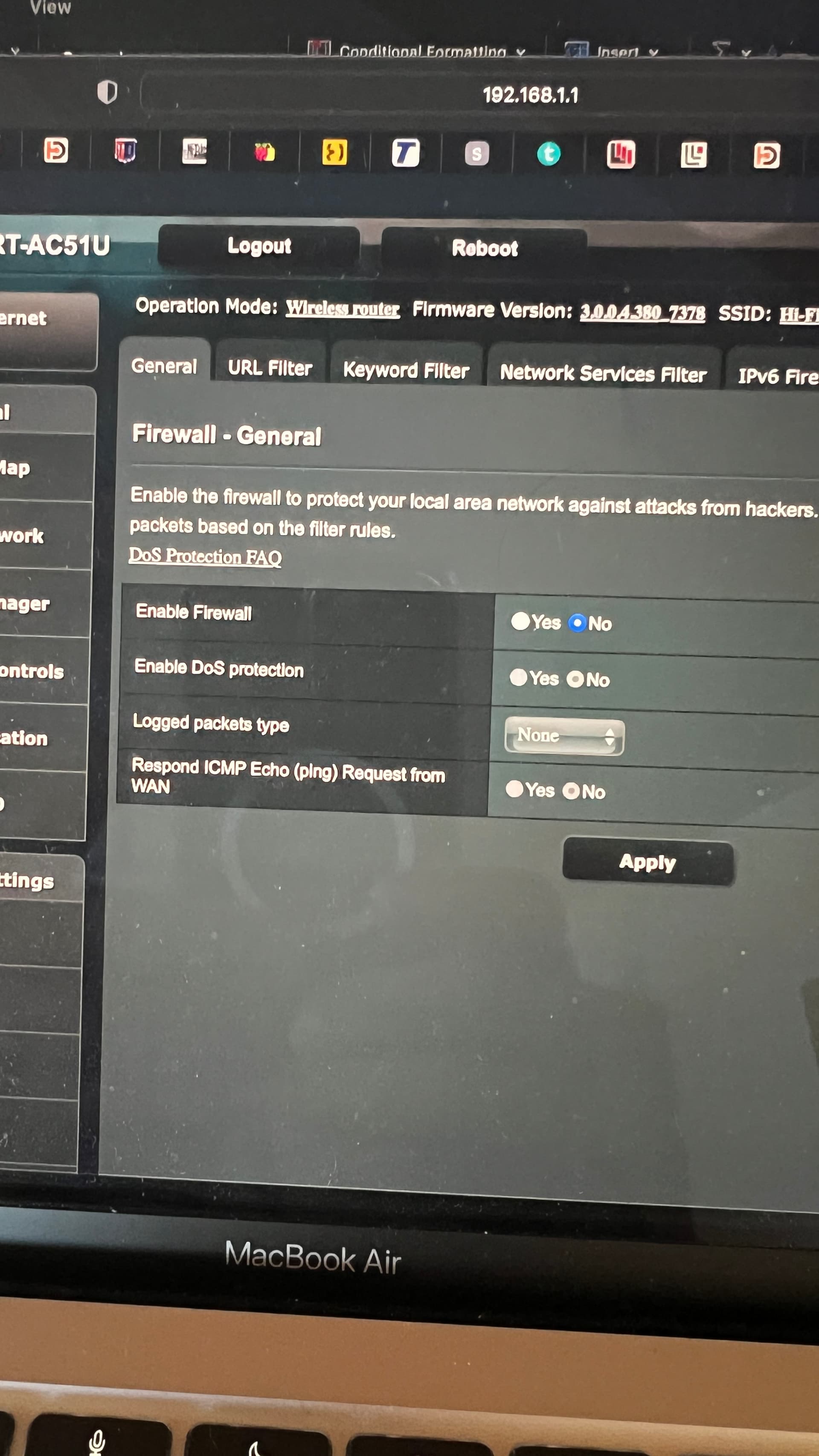
I followed instruction, switched off 5G WiFi completely, as well as firewall and all the other setting that could influence connectivity.
The same with iPhone/ipad WiFi setting I turned off Private WiFi… but really no change unfortunately
iPhone still can not discover the amp while iPad and MacBook can. However it switched from Device tab automatically into Control tab where it is trying to read device state. Similarly when I open Tune tab, after few seconds it goes back to Control tab and the App with attemp to read the state again.
Can you share a screenshot of the things you changed for these
Enable Multicast / IGMP
In the router settings, look for options like Multicast Filtering, IGMP Proxy, or IGMP Snooping and make sure they are enabled/allowed.
Disable AP Isolation / Privacy Mode
Turn off any setting called Wireless Isolation, Client Isolation, or Wi-Fi Privacy. These block devices from seeing each other on your network.
It is very strange but we will figure this out. We are working on a fix for this case specifically on the next update. But for now let’s see if we can help you solve this.
Next Steps to Try
On iPhone
Recheck Local Network Access
Go to Settings → Privacy & Security → Local Network
Make sure the AC650 app is listed and toggled on.
Turn Off Limit IP Address Tracking
In Wi-Fi details (ⓘ next to SSID), toggle Limit IP Address Tracking → OFF.
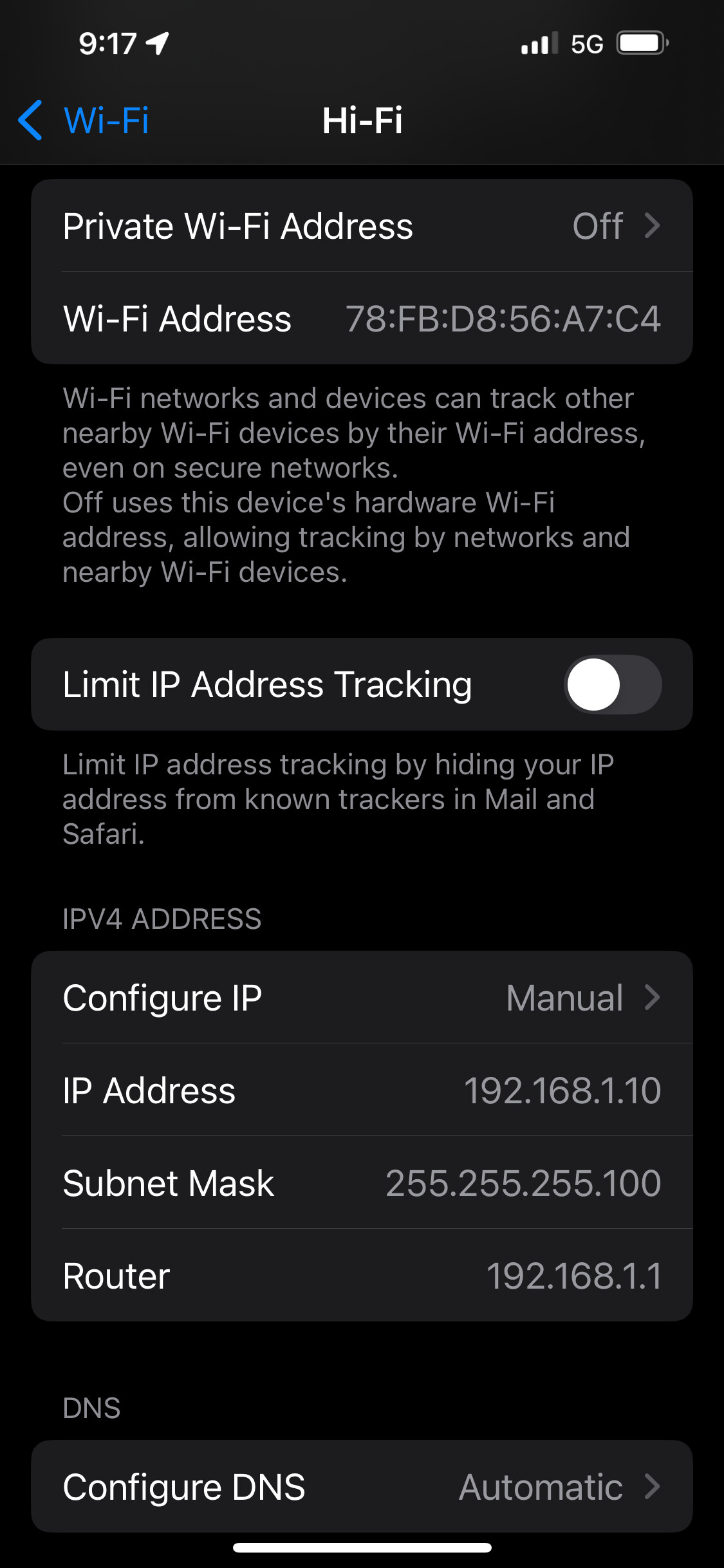
Force IPv4
In Wi-Fi details, scroll to Configure IP → Manual.
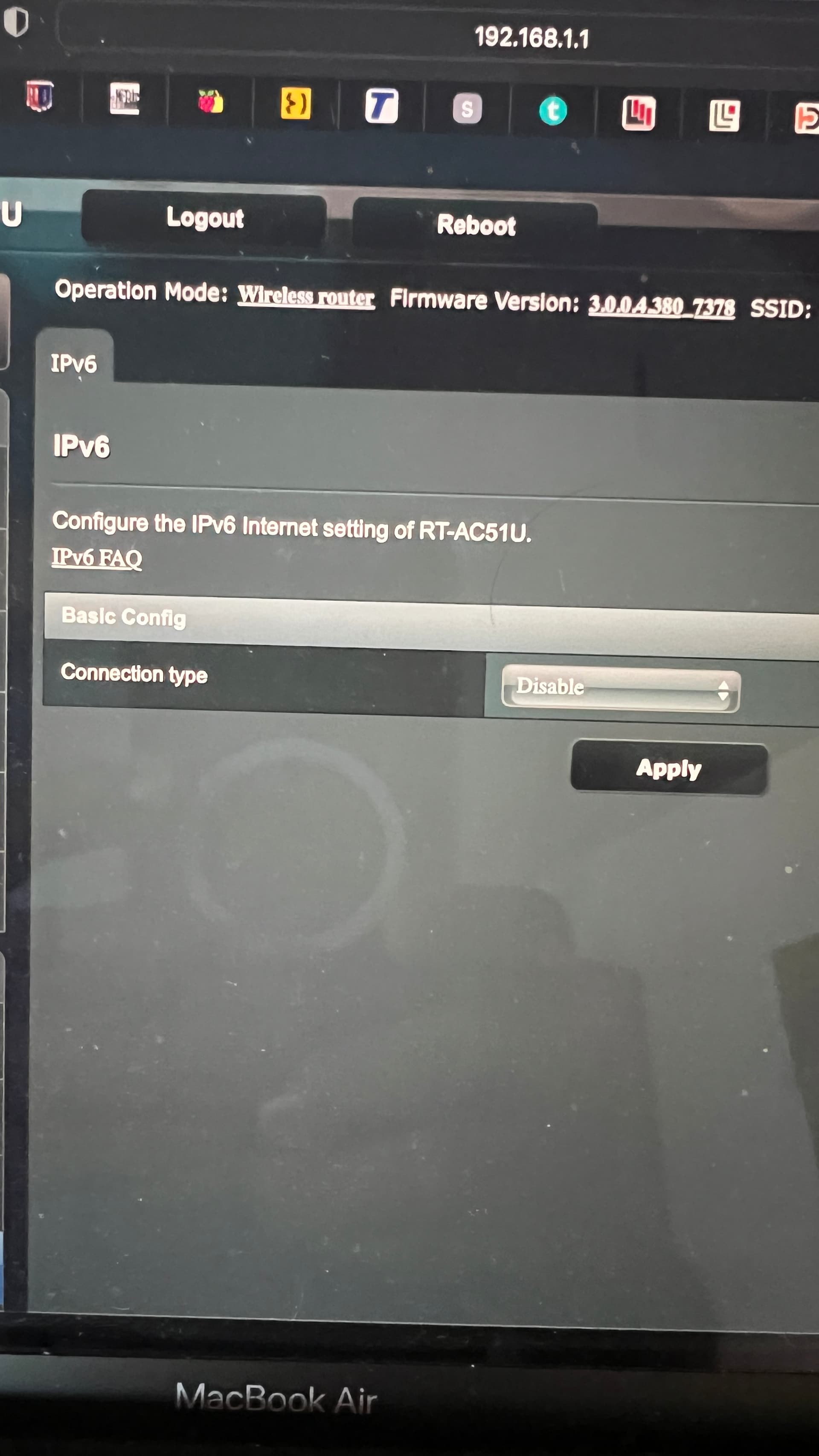
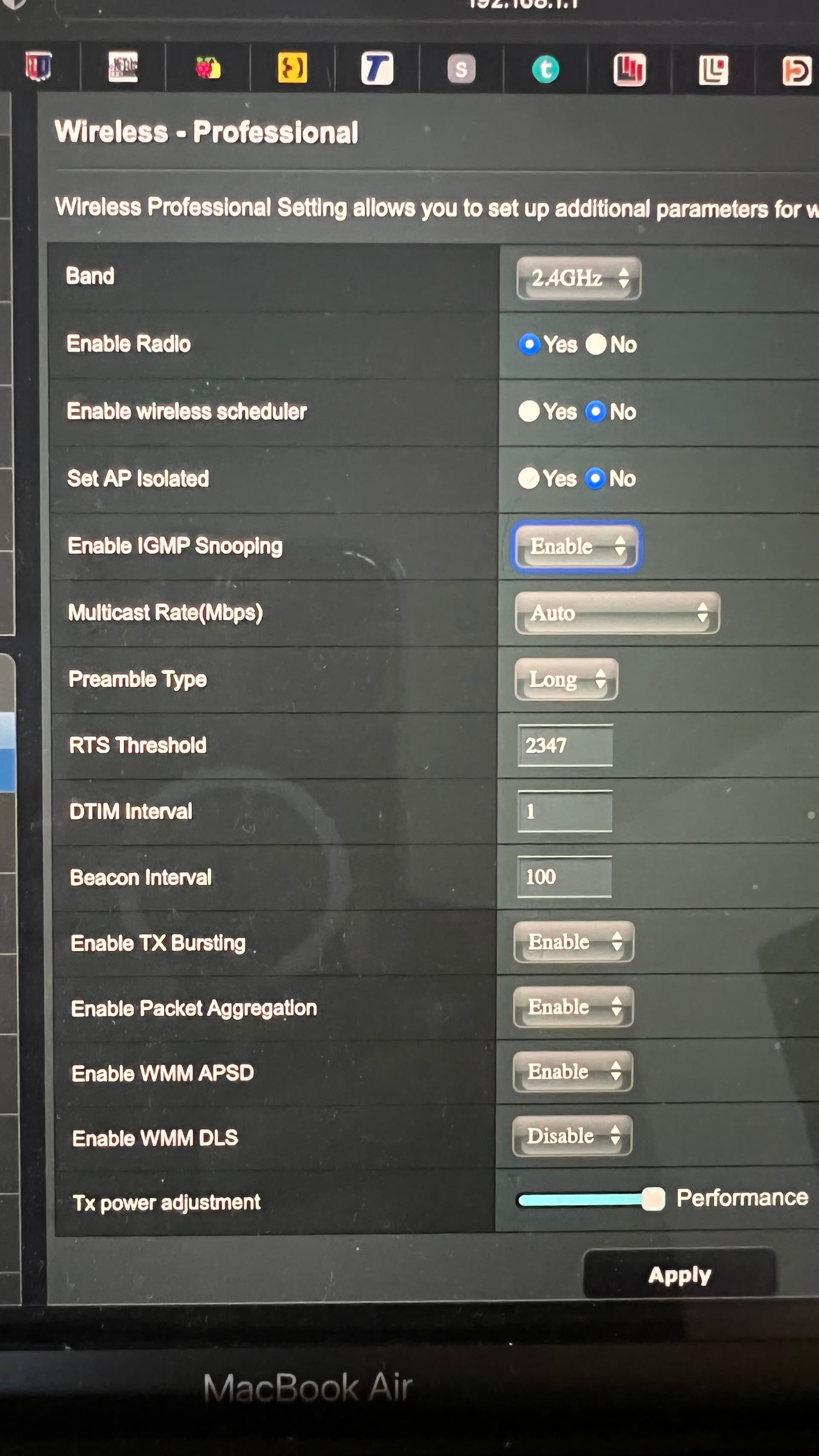
So, I decided to set up a new router with new WiFi network and followed all suggested proposals earlier e.g eliminonate 5G radio, proxy, IP6v, isolation, IGMP, etc. Please see screen shots
And just to add, that iPad setting are fully standard security settings with use of the private address and disabled IP tracking and it works fine, so this seems not to be a problem of the iPhone. There must be something else.
thanks for posting and going through everything. So we’re gonna switch it up a little. What we’re gonna do is work on this from our end and try to replicate the issue.
If you’re up for it we will contact you through email and have you try the app via Test Flight. This is Apple’s testing platform from the App Store. That will allow us to try different things without doing a public release.
if that sounds good either DM or reply here and we will send you an invite to be part of our beta testing team.
Once it is solved we will put the solution here or have a new and updated version for people to download.
Unfortunately not…. There has been an intensive support to resolve it, but unsuccessful. Apparently it will be resolved in the new version of the App hopefully soon.
Hi Timmiee32,
Thanks for letting us know. Although this is not a very common thing that people experience, some people are indeed not able to see the amplifier on certain versions of the iPhone. We are working on a more robust way of keeping contact on all iPhones. If you’d like to be part of our beta team and help us test, feel free to email us at support@acoustas.com
Also, once the issue is resolved, we will post some thing here as well.
I just wanted to give you a heads up that the testers are going to get an email soon from Apple that the new version of the app is ready for testing. Please delete the previous version and download the latest.
This is the latest version specifically for finding the amp for select iPhone users. Please either refresh or delete and re-download TestFlight so you could see the latest version v1.2.3+15.
Once you’ve provisioned your amp, make sure you can see it on other devices on the same WiFi network. Open this app v1.2.3+15 and see if the amps shows up by itself. If the amp does not show up by itself, hit the hamburger menu and tap on Scan for Devices…
If it finds the device, great. Play with the app to make sure it works . See if it sinks up to your other devices when you do things like tone control, or other controls. Then close the app fully and reopen. Does it show up then or do you have to rescan it? Please let us know your findings at support@acoustas.com
Hi. So this thread just petered out in October, and I’m wondering what all happened to everyone, as I have the same issues with both my iPhone 11 and my m2 MacBook?
Thx, Robert